Setting up the Browser Extension using Intune [BETA]
How to deploy the extension centrally using Intune
Written By Amber Willock
Last updated 4 months ago
Before you start
You’ll need:
Admin access to Intune
From Ploy:
The extension ID
dffeldhekjdfdiodpemkejanlcjljbah
The extension update URL
https://ploy-chrome-extension.s3.eu.west-2.amazonaws.com/extension/update-manifest.xml
Your Ploy tenant subdomain
This is the part before
employee-access.comin your Employee Access Portal URLExample:
https://business.ploy.app→ subdomain isbusiness
At least one test device enrolled in your MDM
Extension set-up
Step 1 – Create a Chrome configuration profile
In the Intune admin center, go to Devices → Configuration profiles
Select Create profile
Choose:
Platform: Windows 10 and later
Profile type: Settings catalog
Click Create
Step 2 – Force install the extension
Add a setting under Google Chrome → Extensions
Choose Configure the list of force-installed apps and extensions
Add:
dffeldhekjdfdiodpemkejanlcjljbah;https://ploy-chrome-extension.s3.eu-west-2.amazonaws.com/extension/update-manifest.xml
This installs the extension automatically and keeps it up to date.
Step 3 – Pin the extension to the browser toolbar
Under Google Chrome → Extensions, add Configure extension management settings
Set the value to:
{
"dffeldhekjdfdiodpemkejanlcjljbah": {
"installation_mode": "force_installed",
"update_url": "https://ploy-chrome-extension.s3.eu-west-2.amazonaws.com/extension/update-manifest.xml",
"toolbar_pin": "force_pinned"
}
}
This keeps the Ploy extension visible in the Chrome toolbar.
Step 4 – Connect the extension to your Ploy account
In Intune, add a policy for the Ploy Chrome extension.
Set your Ploy subdomain:
<your-ploy-subdomain>Deploy the policy.
Once this is applied, the extension connects to your Ploy account automatically.
Step 5 – Assign & deploy
Assign the profile to users (recommended) or devices
We recommend testing this with a small group first before rolling it out more widely.
Save the profile
Changes usually apply within the hour.
Step 6 – Check everything’s working
On a test device:
Quit the browser completely then re-open
Go to your extensions
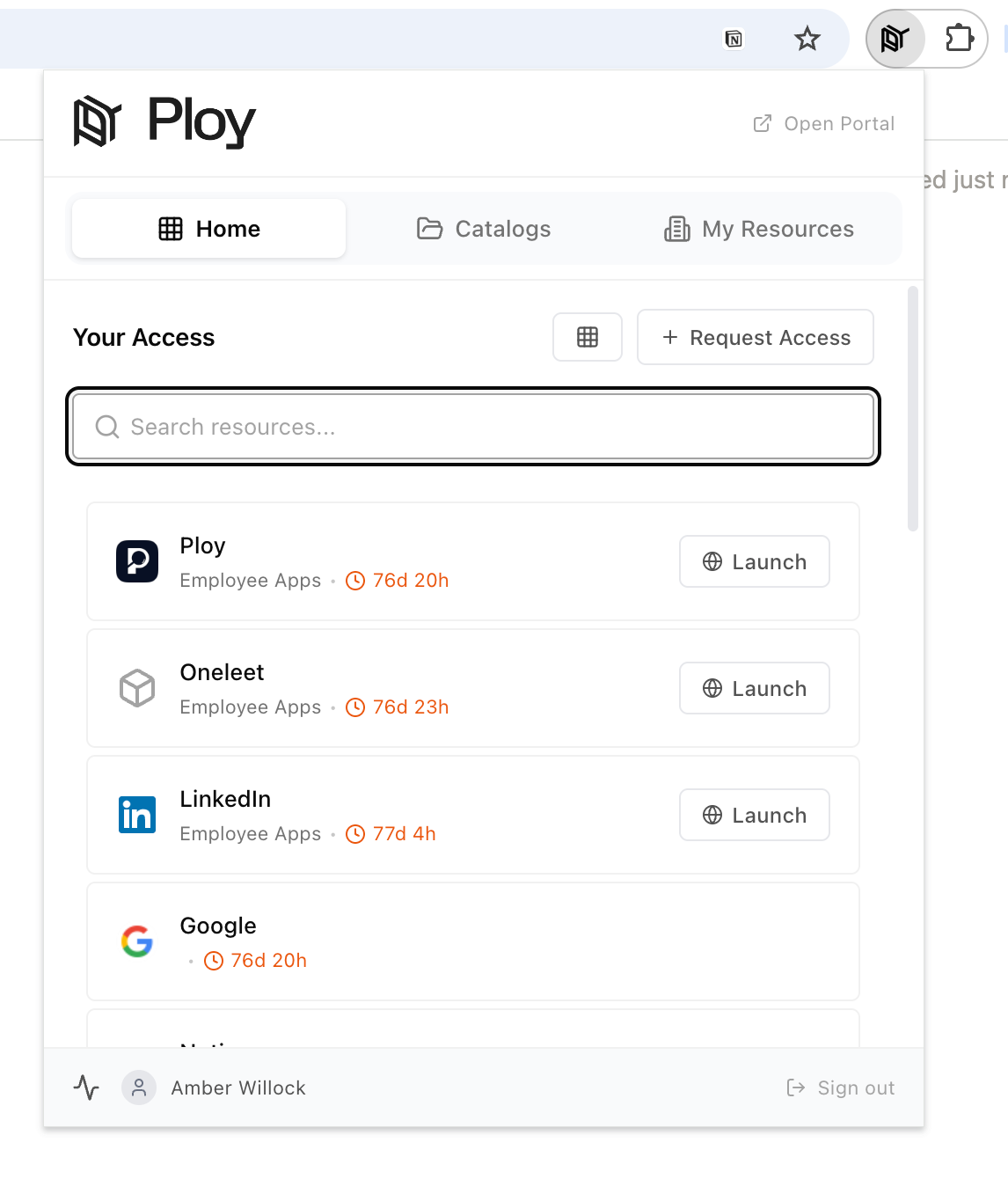
Confirm the Ploy extension is:
Installed
Pinned to the toolbar
Not removable
Step 7 – Rolling out to more users
Once you’re happy with testing, you can expand the rollout by:
Expanding the assignment to include more users or devices
Assigning the profile to additional user groups or device groups
Removing or loosening any targeting you used for testing