Setting up the Browser Extension using an MDM [BETA]
How to deploy the extension centrally using your Mobile Device Management (MDM) tool
Written By Amber Willock
Last updated 5 months ago
We use Kandji + Chrome on macOS as the main example, but the same concepts apply to other MDMs and Chromium-based browsers.
If you only manage Chrome via Google Admin and do not apply browser policies via an MDM, refer to our guide on how to set up the extension there.
Before you start
You’ll need:
Admin access to your MDM console (e.g. Kandji)
From Ploy:
The extension ID
dffeldhekjdfdiodpemkejanlcjljbahA pre-built profile for your MDM
Your Ploy tenant subdomain
This is the part before
employee-access.comin your Employee Access Portal URLExample:
https://business.ploy.app→ subdomain isbusiness
At least one test device enrolled in your MDM
Extension set-up
Step 1 – Get your Kandji profile
This is a .mobileconfig file that’s already configured for your tenant.
This profile will:
Add the Ploy extension to Chrome’s force install list
Pin the extension in the browser toolbar
Apply the required policies (including your Ploy subdomain and update URL)
If you don’t already have the profile link, ask the Ploy team and we’ll share it with you.
Step 2 – Upload and assign the profile in Kandji
Log into Kandji Admin
Go to Library
Click Add New
Choose Custom Profile
Select macOS
Click Upload and select the
.mobileconfigfileGive it a clear name, for example:
Ploy Browser Extension – ChromeScroll to Assignment
Click + Assign next to Assignment Maps
Choose one of the following:
Select an existing Blueprint (e.g.
TechorMac – Production), orCreate a new Assignment Map using conditions (user, device, serial number, OS version, etc.)
Click Save
Targeting a small test group (recommended)
Before rolling out to everyone, we recommend targeting a limited set of devices or users, for example:
A couple of IT managers’ Macs
A specific serial number or user email using conditional logic in the Assignment Map
This lets you validate everything before a wider rollout.
Step 3 – Sync your test devices
On each test Mac:
Confirm it’s assigned via the Assignment Map
Trigger a sync:
From the Kandji menu bar agent on the Mac, or
From the Kandji console (e.g. Check-in / Sync)
Once the profile is installed, you should see it under the device’s Profiles in macOS Settings / System Settings.
Step 4 – Restart the browser and confirm the extension
On your test device:
Quit the browser completely
Re-open the browser
Confirm:
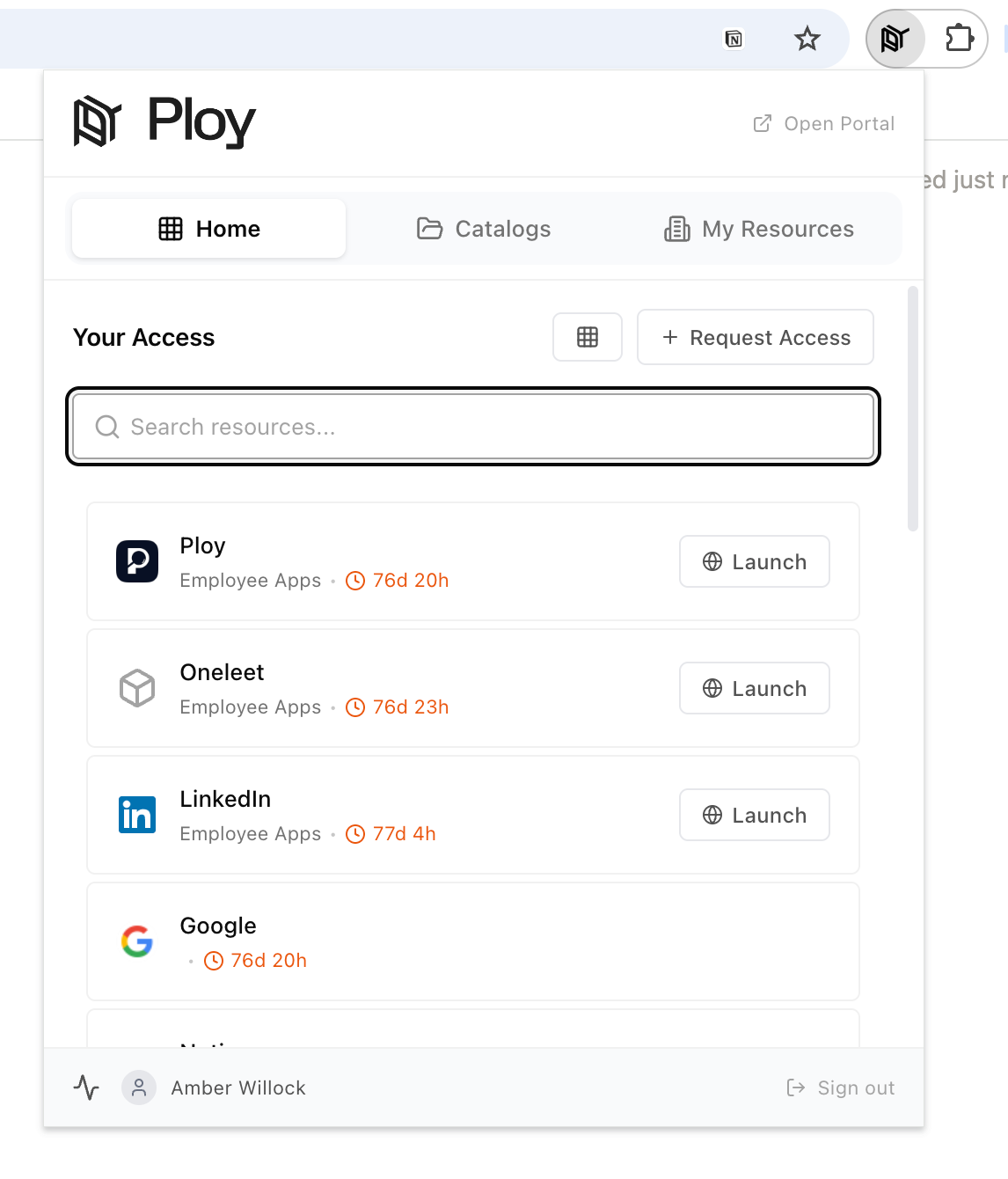
The Ploy icon is visible and pinned in the toolbar
In
chrome://extensions, Ploy shows as installed by your organisationUsers cannot remove it (if the profile is enforced)
Then:
Click the Ploy icon
Sign in
Confirm you can:
Open the extension
See the Catalog and Tasks
Navigate to a few apps and click the heartbeat icon in the extension to see usage starting to appear
If all of the above works, your Kandji deployment is good to go.
Step 5 – Rolling out to more users
Once you’re happy with testing, you can expand the rollout by:
Adding the Ploy profile to more Blueprints
Relaxing the Assignment Map conditions so it applies to a wider set of devices or departments
Communicating to users how they’ll use the extension